
A spreadsheet can be a useful purchasing register when each row has a clear meaning and updates are controlled. Automation becomes fragile when row positions, free-text statuses and manual edits serve as the data model.
Decide what one row represents
Choose a request, a request line, a supplier quotation line or a receipt as the row's grain. Avoid mixing them in the same table without an explicit record type. A request with four items needs either four identified lines or a linked line-item table. Keeping all four descriptions in one cell makes quantity checks and later updates difficult.
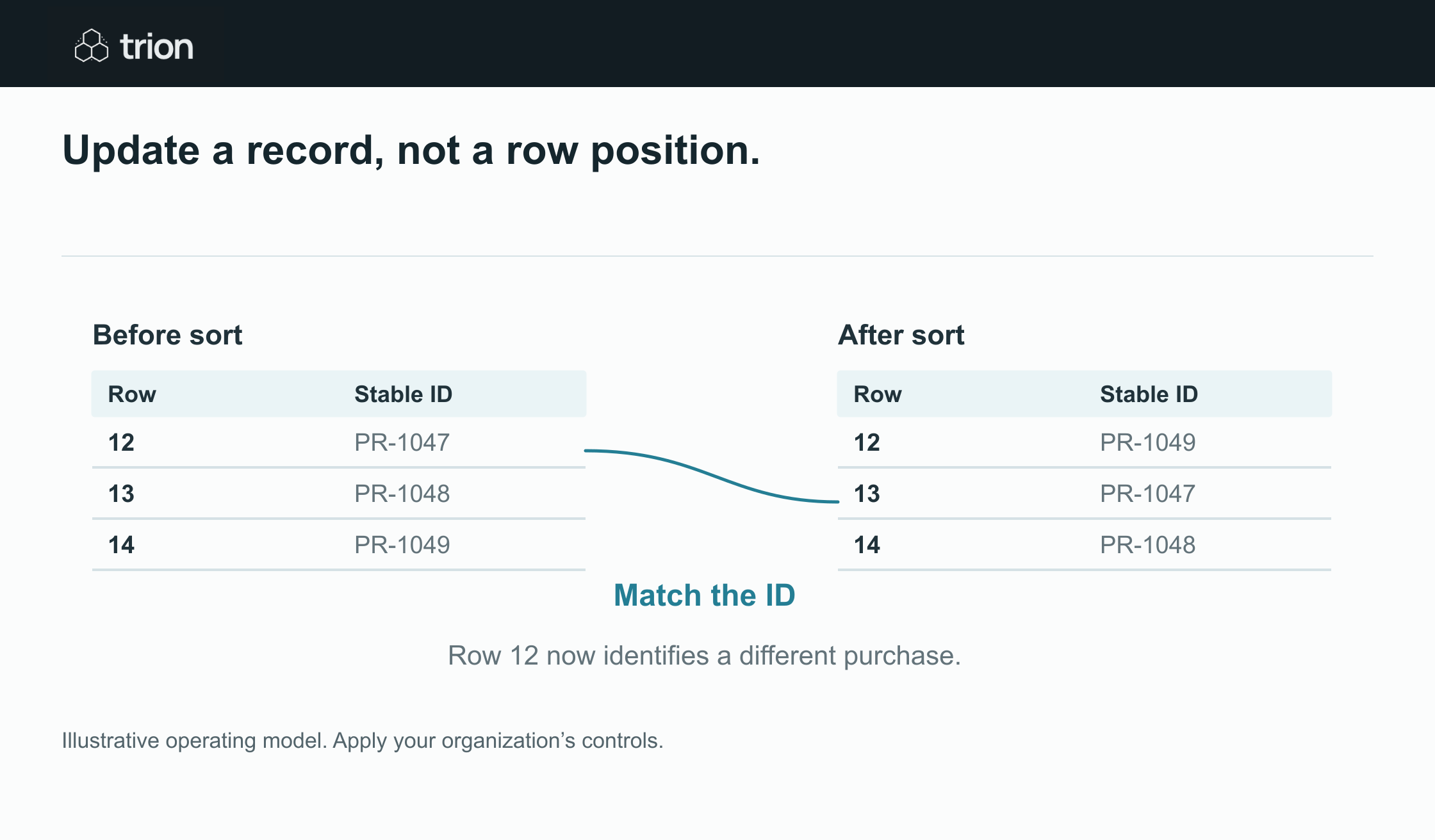

Update a record, not a row position.
- Stable ID
- Identify the purchase
- Source fields
- Preserve original values
- Controlled write
- One update path
- Reconcile
- Check what was accepted
View data
| Evidence | Meaning |
|---|---|
| Stable ID | Identify the purchase |
| Source fields | Preserve original values |
| Controlled write | One update path |
| Reconcile | Check what was accepted |
Illustrative operating model. Apply your organization’s controls.
Download imageGive each record a stable ID. Use request ID plus line ID for request lines, and a separate quote version or receipt reference where required. Row number is a display position, not a durable identifier: sorting the workbook should not change which purchase an integration updates.
Separate source fields from calculated fields
Keep quantity, quoted unit, currency, unit price and shipping basis as inputs. Calculate line totals from compatible values. Record unknown shipping as unknown, not zero. Store the original source link beside the accepted record so the buyer can check where a value came from.
| Field | Purpose | Update owner |
|---|---|---|
| Request ID and line ID | Stable record identity | Intake process |
| Quantity and unit | Requested or quoted basis | Requester or buyer |
| Review state | Current business action | Assigned reviewer |
| Last update reference | Retry and recovery evidence | Integration |
Define status choices rather than letting approved, done, OK and paid accumulate as interchangeable text. They represent different events. A protected formula column can help prevent accidental overwrites, but the operating process still needs to specify which fields staff may change and how corrections are recorded.
A worked example: a retry should not add another row
A fictional workflow receives request PR-611 with two lines. It writes records PR-611-1 and PR-611-2, along with the source message ID and import run reference. A connection timeout occurs after the first line is written. The next run finds PR-611-1, verifies its existing values and creates only the missing second line.
If the retry instead appends both rows again, the register now appears to request twice the quantity. A durable import key prevents that problem. If the existing row contains different values, stop for a conflict review; do not assume that the retry should replace a correction made by the buyer.
Use a controlled write path
Microsoft states that simultaneous modifications to one file by different clients are not supported by the Excel Online (Business) connector and can cause conflicts or inconsistent data. Its documentation also lists file-locking and other connector limitations. These are connector-specific constraints, so test the actual platform and integration you choose. Read the connector limitations.
For that type of integration, a practical design queues writes through one controlled process and provides a reviewed correction path. Keep staff informed about when automated updates occur. A separate staging area can hold proposed records until the buyer accepts them, rather than having automation rewrite a working purchasing table unpredictably.
Plan for failed and partial updates
A run record should identify the expected inputs, records written, records skipped and conflicts. A success notification is insufficient if one line failed while the overall request appears complete. Compare the expected record IDs with the actual results and preserve the failed input for recovery.
Test a sorted table, an added column, a renamed header, a duplicate ID, a blank numeric field and a manual correction during an update. Confirm the integration's permissions and whether it needs a formal table rather than an arbitrary cell range. Also test the workbook size and record volume expected in the pilot.
Know when the spreadsheet stops being the right record store
Consider a more structured store when concurrency, permissions, audit history or many linked transactions exceed the register's operating model. The trigger is the required behavior, not an arbitrary number of rows. A spreadsheet can remain a reporting view while a controlled system holds the transactional records.
Begin with the readiness check and document who owns the register. For supplier matching, use the separate email matching guide. For cost comparison, use the comparison guide. Reliable spreadsheet automation starts with consistent records and recoverable updates, before adding further calculations.